Overview
LowerPlane connects to Azure using an App Registration (service principal) with read-only permissions across your subscription and Entra ID tenant.
Services Monitored
| Azure Service | What LowerPlane Collects |
|---|
| Defender for Cloud | Security recommendations and secure score |
| Entra ID (Azure AD) | Users, groups, MFA status, conditional access policies |
| Activity Log | Administrative and security event audit trails |
| Network Watcher | Network security group rules and flow logs |
| Key Vault | Key and secret management configuration |
| Storage | Storage account encryption and access settings |
| Policy | Azure Policy compliance state |
Step 1: Open Azure Portal
Go to https://portal.azure.com/ and sign in with a Global Administrator or Application Administrator account.
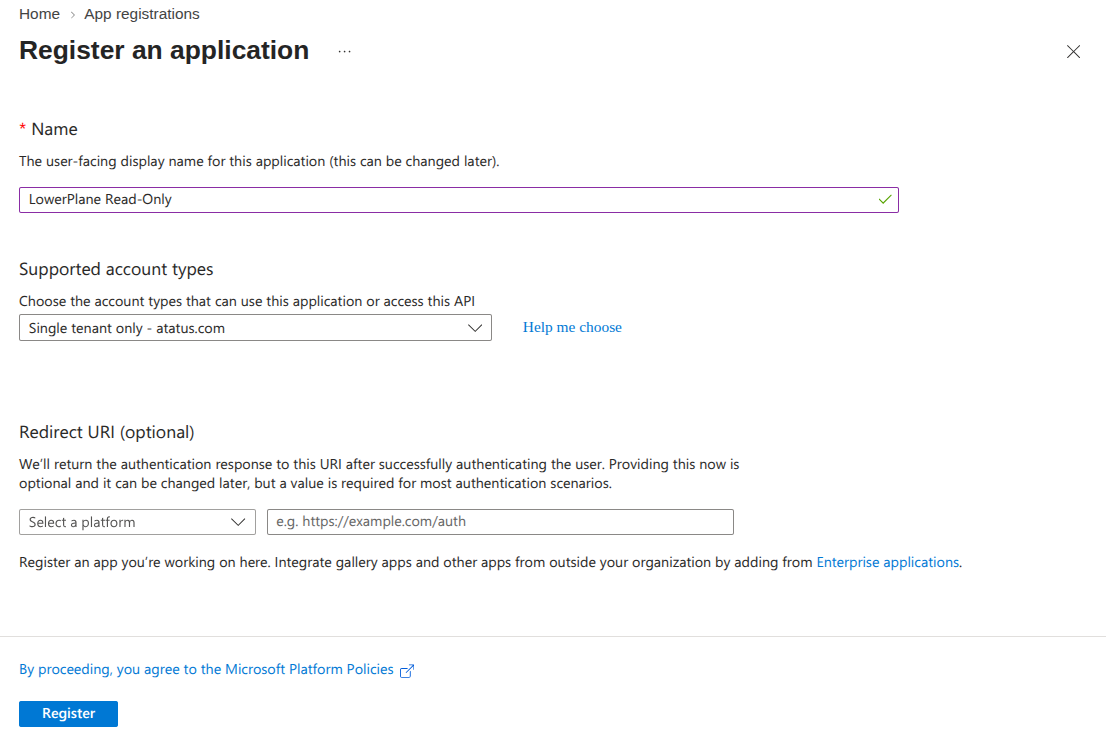
Step 2: Create App Registration
- Navigate to Microsoft Entra ID
- Select App registrations
- Click New registration
Configuration:
- Name:
LowerPlane Read-Only
- Supported account types: Single tenant (this organization only)
- Redirect URI: Leave blank
Click Register.
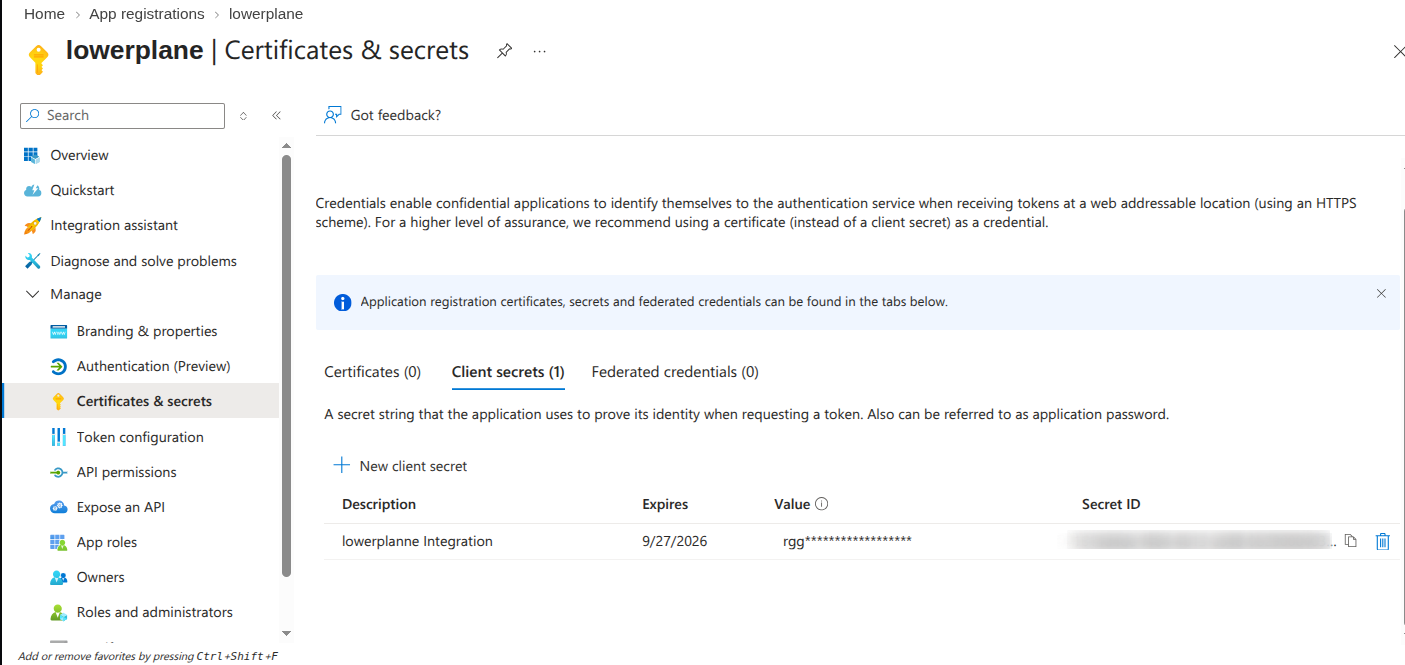
Step 3: Create Client Secret
- In the app registration, go to Certificates & secrets
- Click New client secret
Configuration:
- Description:
lowerplane-integration
- Expiry: 24 months (recommended)
Click Add.
Important: Copy the Value column, not the Secret ID. Azure masks the Value as soon as you leave this page and will not show it again.
Step 4: Note Application IDs
From the app registration Overview page, copy:
- Application (client) ID — used as Client ID in LowerPlane
- Directory (tenant) ID — used as Tenant ID in LowerPlane
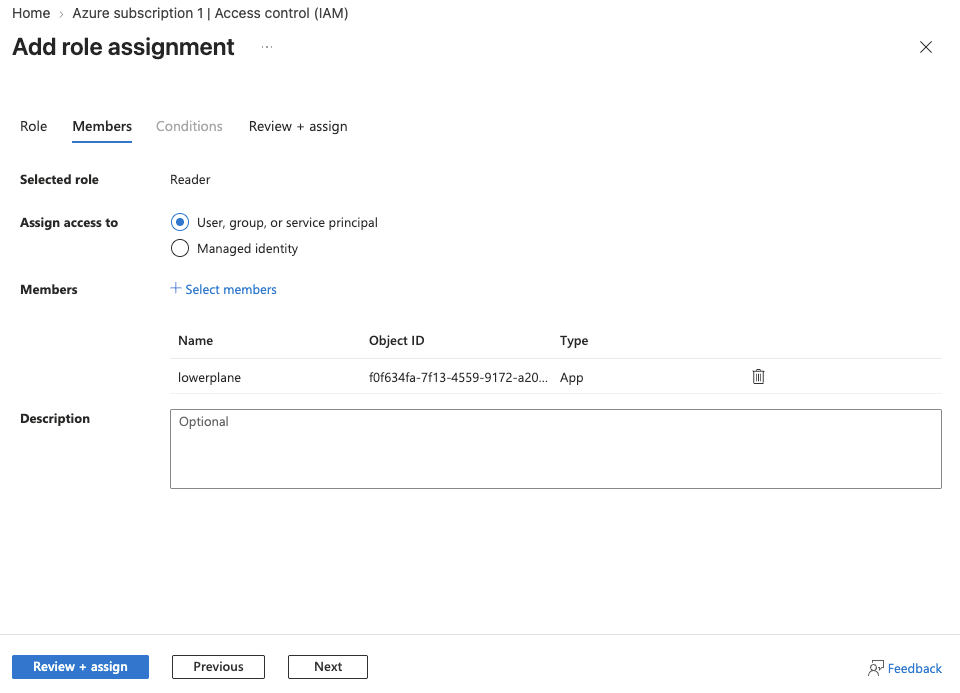
Step 5: Assign Subscription Reader Role
- Navigate to your Subscription
- Select Access control (IAM)
- Click Add role assignment
Configuration:
- Role: Reader
- Assign access to: User, group, or service principal
- Select: Search for
LowerPlane Read-Only (the app registration)
Click Review + assign.
The app registration appears under Type: App in the members list. If your search returns no results, confirm the app registration was created in the same tenant as the subscription.
Step 6: Add Entra ID API Permissions
- Go back to the App Registration
- Select API permissions
- Click Add a permission
- Select Microsoft Graph
- Select Application permissions
- Add the following permissions:
| Permission | Purpose |
|---|
Directory.Read.All | Read users, groups, and directory data |
SecurityEvents.Read.All | Read security findings and alerts |
AuditLog.Read.All | Read audit log entries |
- Click Grant admin consent for [your organization]
Step 7: Note Subscription ID
- Navigate to Subscriptions in the Azure Portal
- Copy the Subscription ID for the subscription you want to monitor
Step 8: Connect in LowerPlane
- Go to Integrations in LowerPlane
- Find Microsoft Azure and click Connect
- Enter the following credentials:
| Field | Where to find it |
|---|
| Tenant ID | Microsoft Entra ID > Overview > Basic Information |
| Application ID | App registrations > Your app > Overview > Application (client) ID |
| Application Client Secret | App registrations > Your app > Certificates & secrets > Secret Value |
| Subscription ID | Subscriptions > Your subscription > Overview |
- Click Connect
LowerPlane will validate the credentials and begin syncing.
Important Notes
- Set a reminder to rotate the client secret before it expires (Azure does not auto-renew)
- If your organization uses both Azure AD for identity and Azure for infrastructure, you may need two separate connections
- The Reader role provides read-only access. LowerPlane never modifies resources in your Azure subscription
Automated Tests
When Azure is connected, LowerPlane automatically creates and runs tests including:
- MFA is enforced for all users
- Conditional access policies are configured
- Network security groups do not allow unrestricted inbound access
- Storage account encryption is enabled
- Diagnostic logging is configured
- Azure Policy compliance is monitored